A free service intended to serve those people in our communities who are most vulnerable to scammers and confidence schemes. Completely free. No Adware - ever. No Fees - ever. No personal data transmitted or used by us - ever.

Introducing Lumevari / Your feedback is invited
A safer next step.
Always-free help to understand scam warning signs and reach someone you trust.
Prefer a copy to share? Download the PDF guide.Product preview. Android-first and in development. Explore the features here and help shape the experience. An app download link will follow when the app is ready.

ALWAYS FREE.No trial or subscription.
EVER.No advertising revenue.
UPLOADS.Private checks on your phone.
Why I’m building this
Help should be within everyone’s reach.
A worrying text, an unexpected invoice or a caller demanding an immediate payment can leave anyone wondering what to do next. That moment should be easier to navigate, especially for someone living independently or on a fixed income.
I’m building Lumevari to help older adults and anyone at risk of scams pause, understand the warning signs and ask someone they trust. The aim is to support informed choices while preserving privacy, dignity and independence.
This is a free service intended to serve people most vulnerable to scams. The free version will remain free through future updates. Any premium offering will be separate and optional; you will not need it to use the free features described here.

The purpose
Help without taking over.
My focus is on serious problems, simple tools and low operating costs. A helpful app should explain a concern in familiar language and make the next step obvious.
That means readable controls, calm guidance and a clear route to a trusted person. Basic help should never depend on someone’s ability to pay.
“Help me understand this. Help me ask someone I trust.”
The need is real
A moment to pause can matter.
The FBI’s 2025 IC3 report records the following for people aged 60 and over:
Source: FBI, 2025 IC3 Annual Report, p. 44 and Appendix C. These are reports, not a count of all scams or necessarily unique victims. Underreporting means the true frequency is unknown.
The FTC also finds that older adults report losing money less often than younger adults, but report higher median losses. The goal is practical support that respects people’s ability to make their own decisions. Read the FTC’s findings, Section IV.A.
One place to pause and check
Three simple moments.
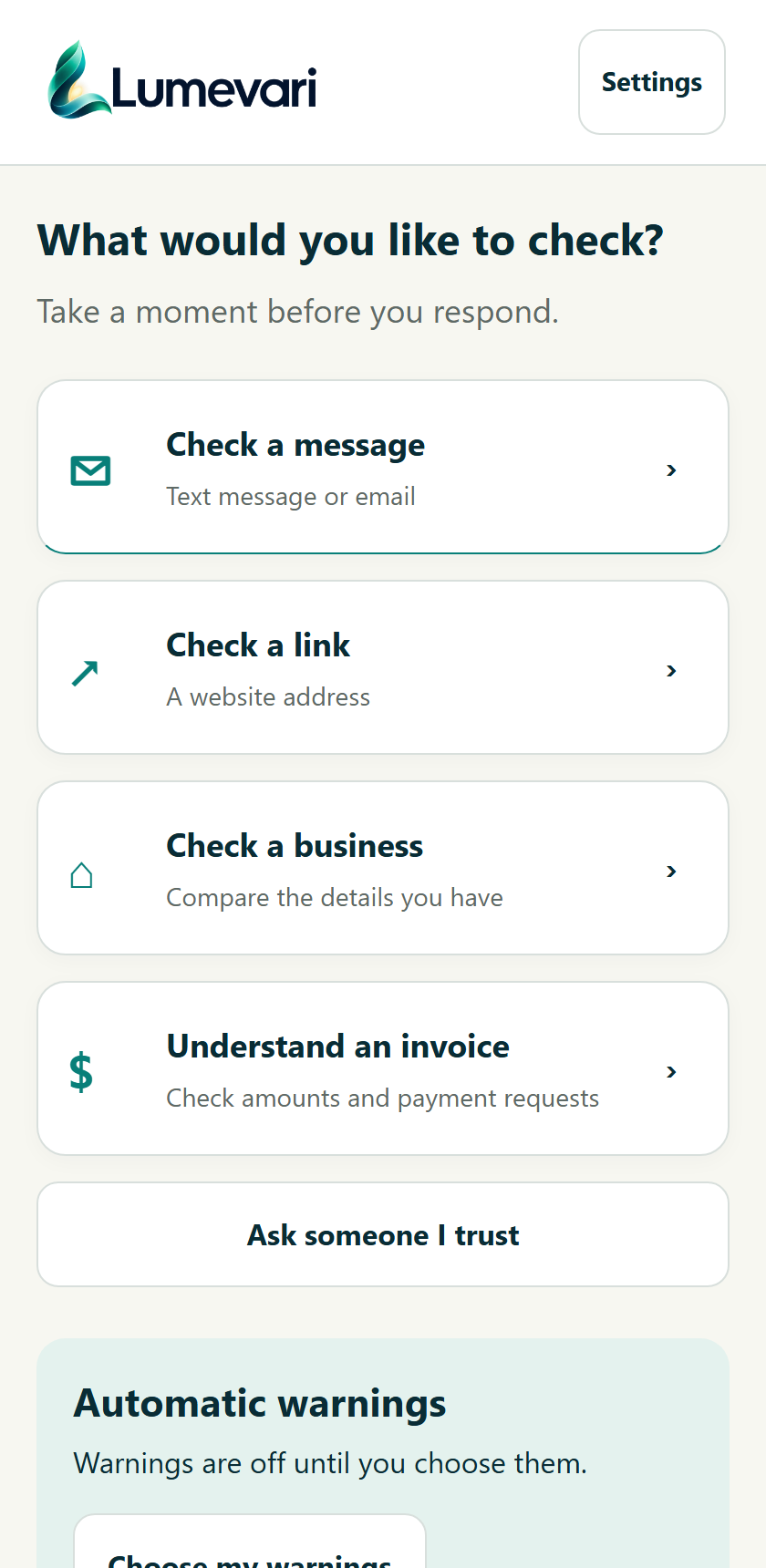
Start with the big picture, then open any feature below for its steps, screens and limits. All examples are invented.
Choose what worries you.
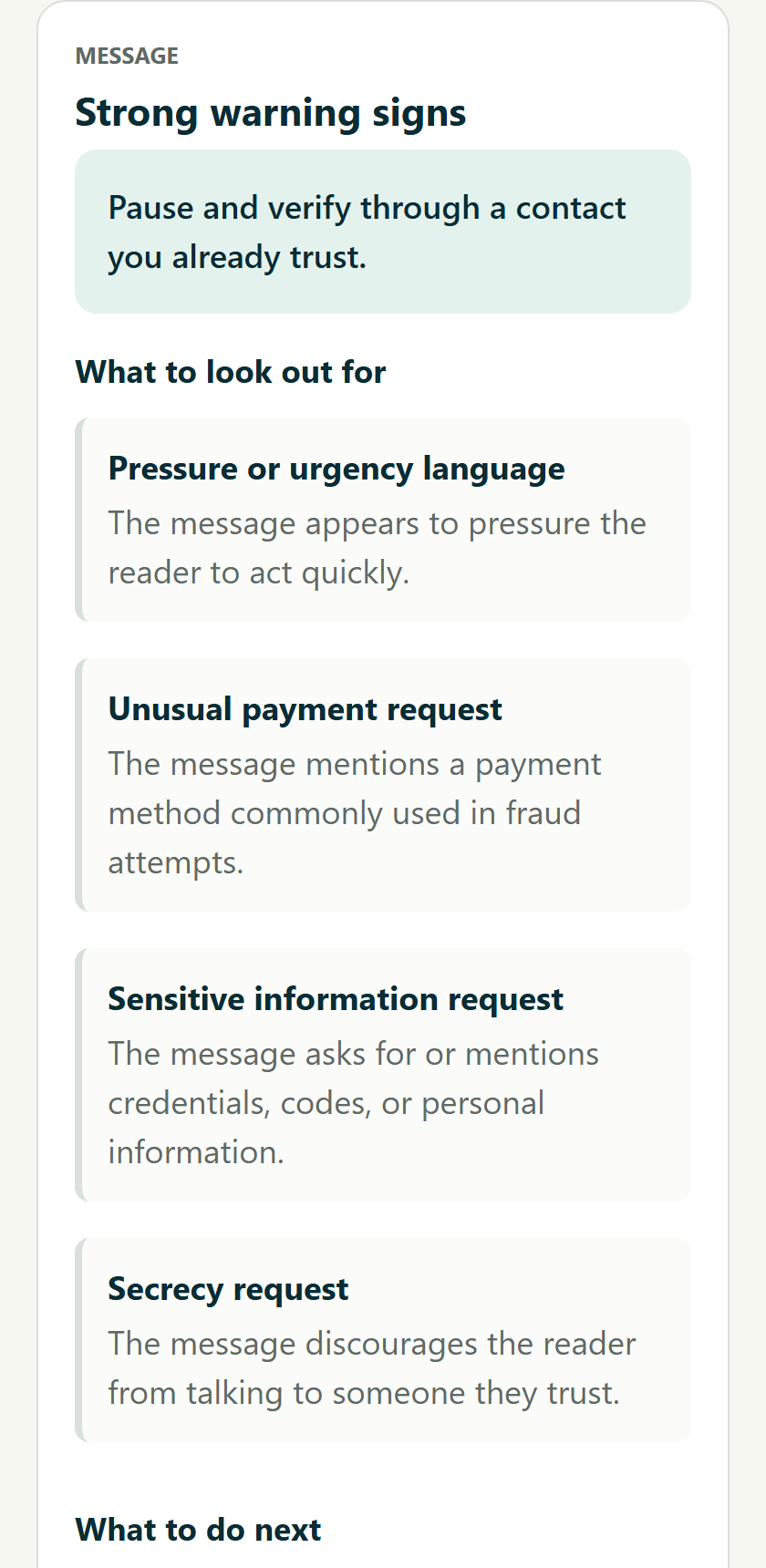
Understand the concern.
Ask someone you trust.
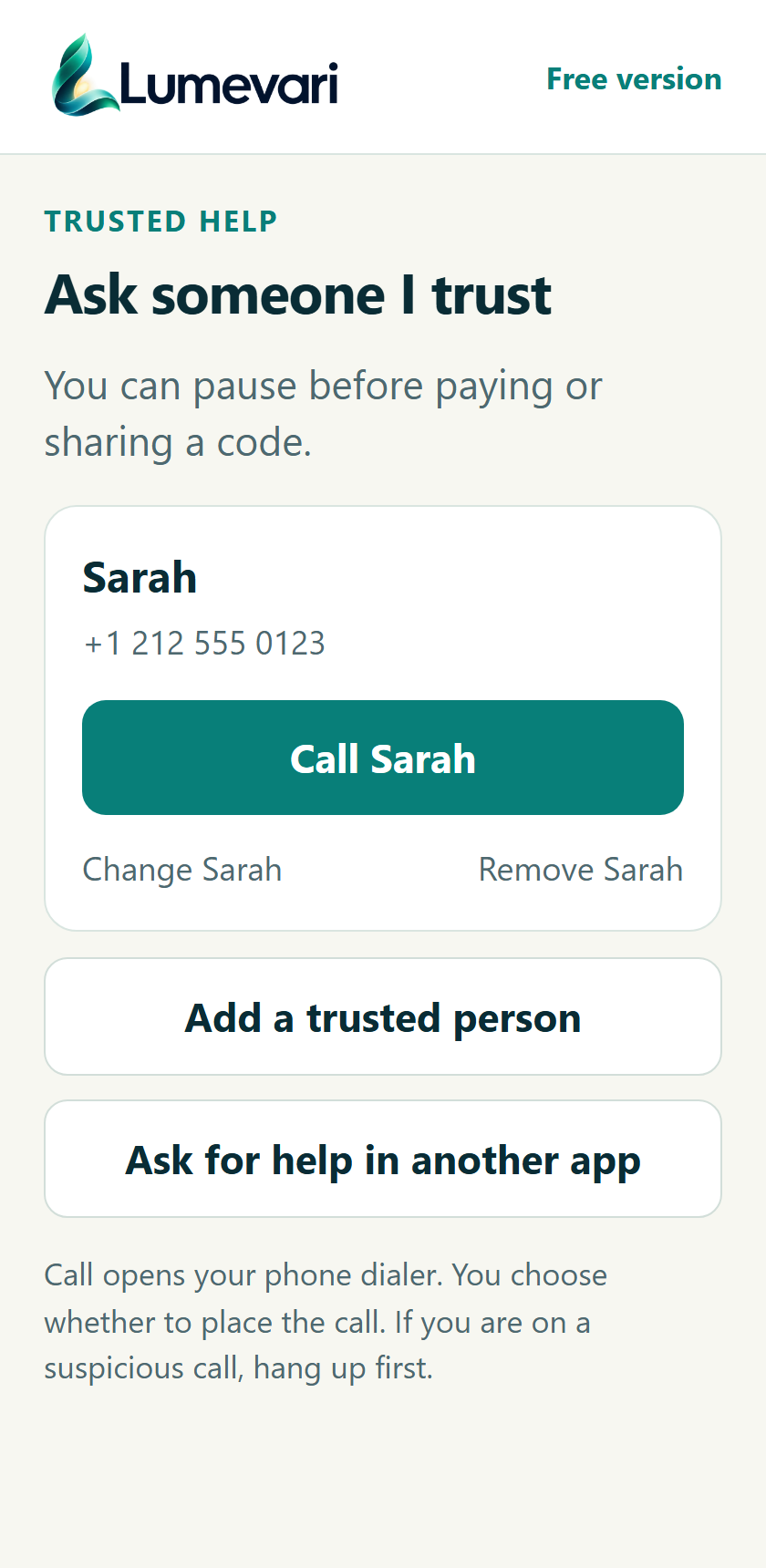
These are browser-rendered interface views and a proposed design, rather than physical Android screenshots. Some screens continue below the visible area. Proposed screens are clearly labelled throughout this post.
The first release / Free version
The features we’re shaping.
The release scope brings these ten areas together. Some are implemented in the development interface; proposed screens and hands-on testing remain part of the work before release.
Open a feature to see how it works. Each walkthrough includes its value, three simple steps and example screens.
F1Check a message.Turn a worrying text or email into specific warning signs and a calmer next step.
- Add the message
Choose Check a message. Paste text or share it from the original app.
- Check deliberately
Read what was added, then choose Check this. The check runs on the phone.
- Pause and verify
Read the reasons. Use a trusted contact route or ask someone you know.
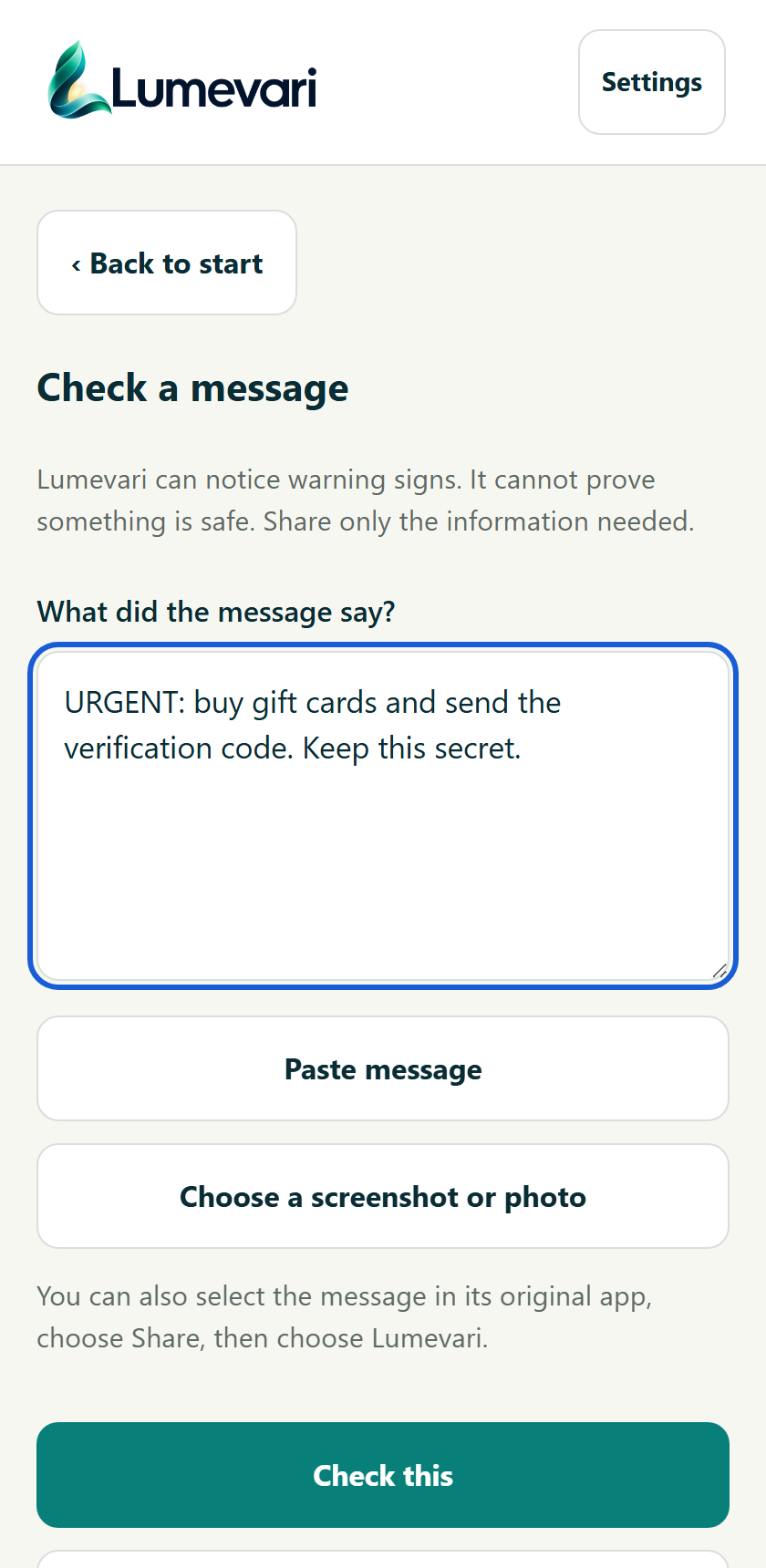
Reviews the text you provide. It does not authenticate the sender or read a complete inbox.
Help us improve: Would you understand why this message deserves a pause? Tell us what you think.
F2Read a picture.Check a screenshot or printed invoice without retyping the whole thing.
- Choose one picture
Use the picture button in a message or invoice review, or share a picture.
- Correct the reading
Text appears on the phone. Compare it with the original and fix mistakes.
- Choose Check this
Reading a picture does not automatically check it or send it anywhere.
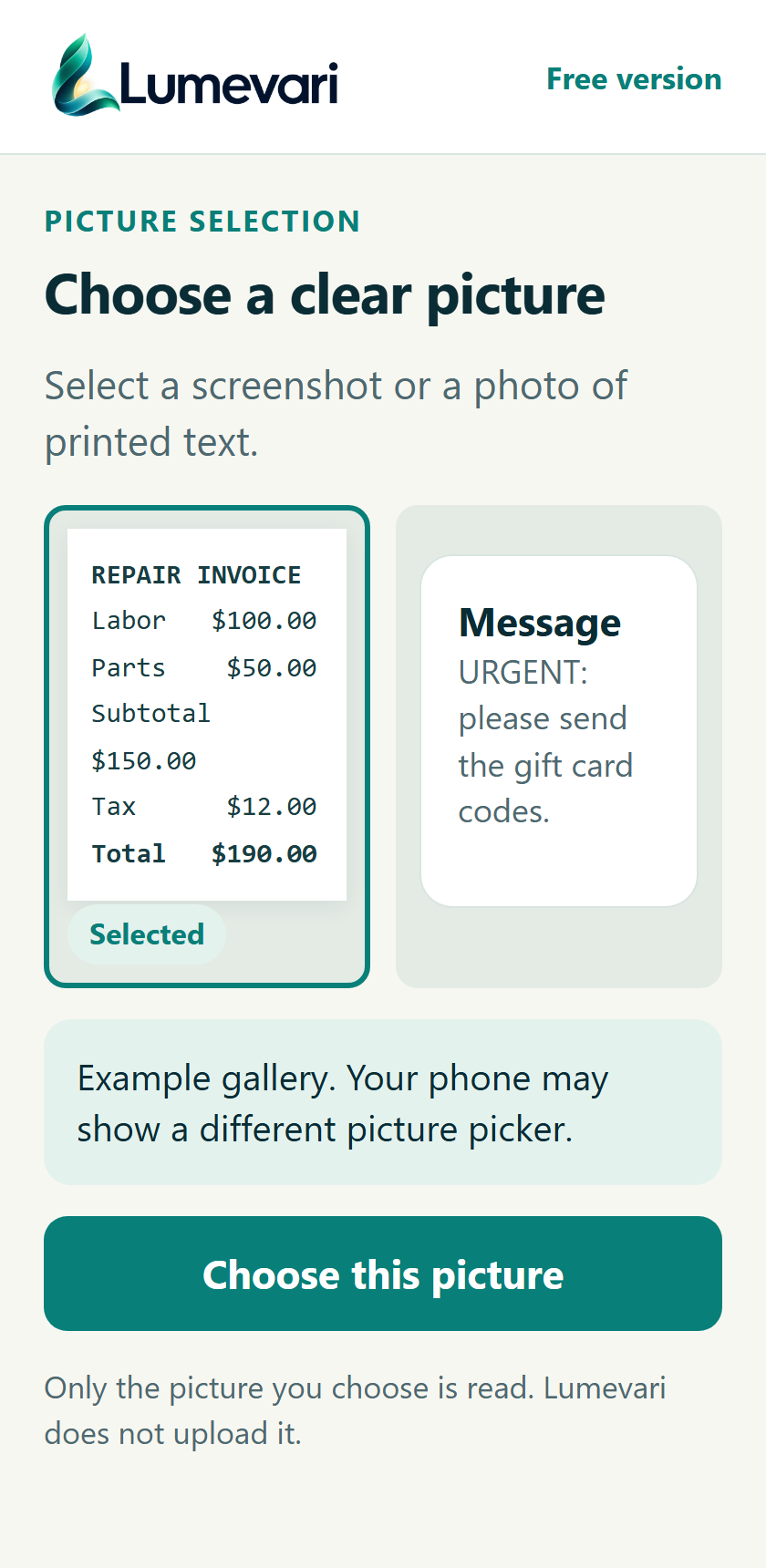
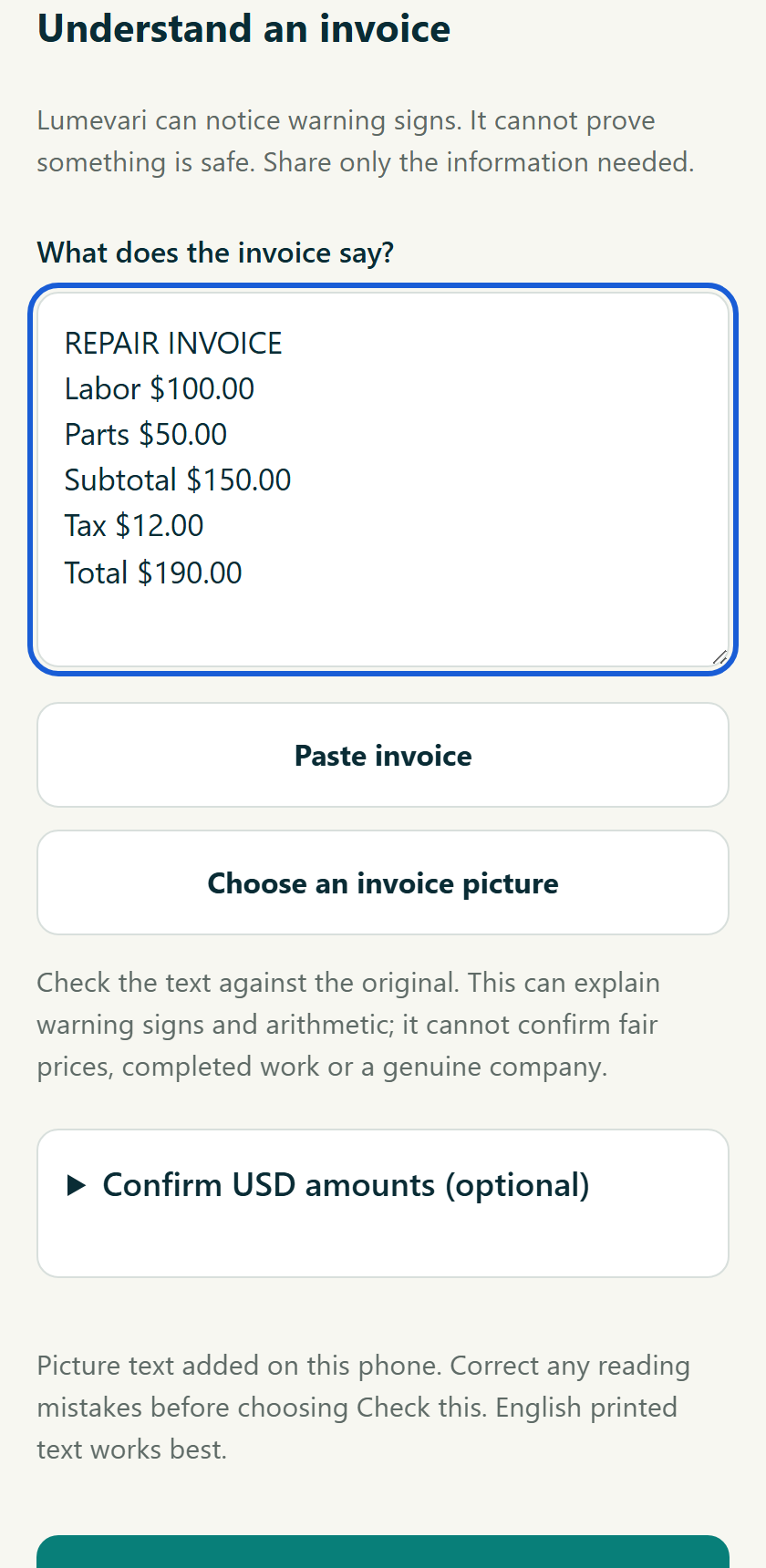
English printed PNG, JPEG or WebP images under 15 MB. No PDFs or handwriting guarantee.
Help us improve: Is it obvious that you should correct the extracted text first? Tell us what you think.
F3Check a link.Inspect a suspicious website address before opening it.
- Paste or share
Choose Check a link and add the address. You do not need to visit it.
- Inspect the address
Local rules look for confusing structures and other visible warning signs.
- Use a trusted route
For an important request, use a known app, bookmark or official contact.
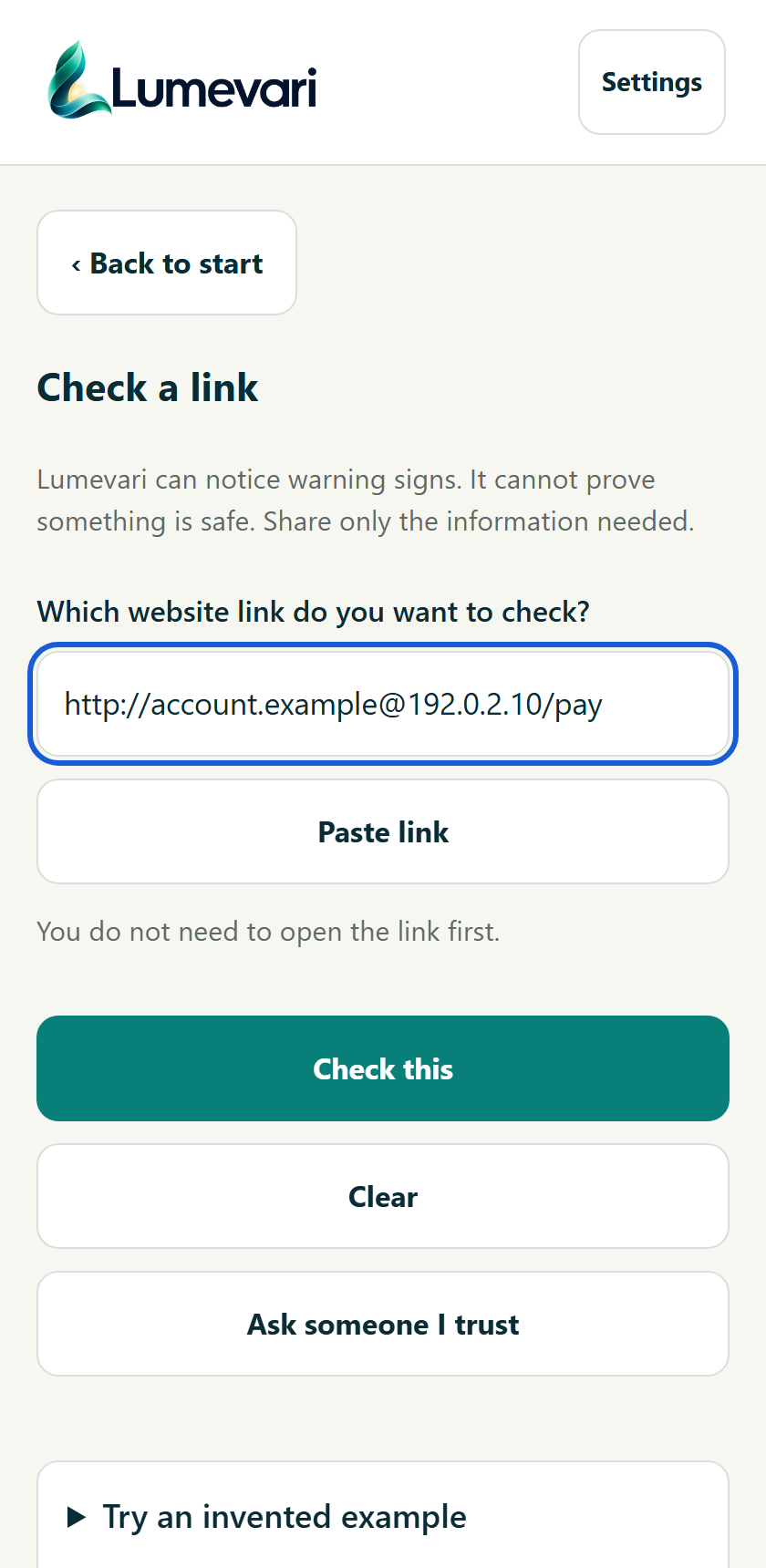
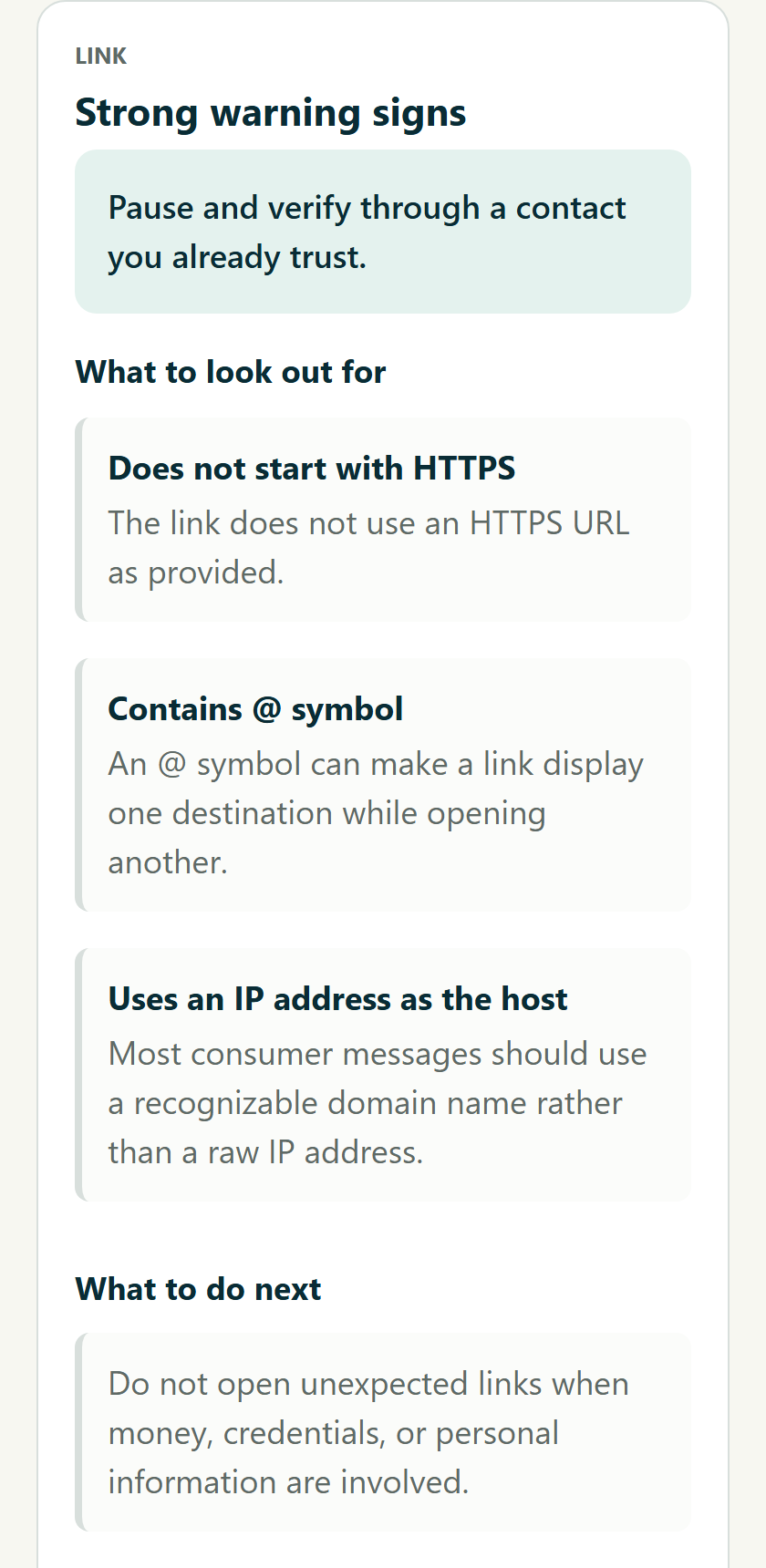
No live reputation or malware scan. An address without warning signs can still lead to a scam.
Help us improve: Would you know how to verify the request without using this link? Tell us what you think.
F4Understand an invoice.Find a concrete question to ask before you pay.
- Add the invoice
Paste text or choose a picture. Check the text against the original bill.
- Confirm USD amounts
Use the optional amounts section when totals or adjustments are unclear.
- Review the difference
See arithmetic and payment warning signs. Ask for an explanation first.
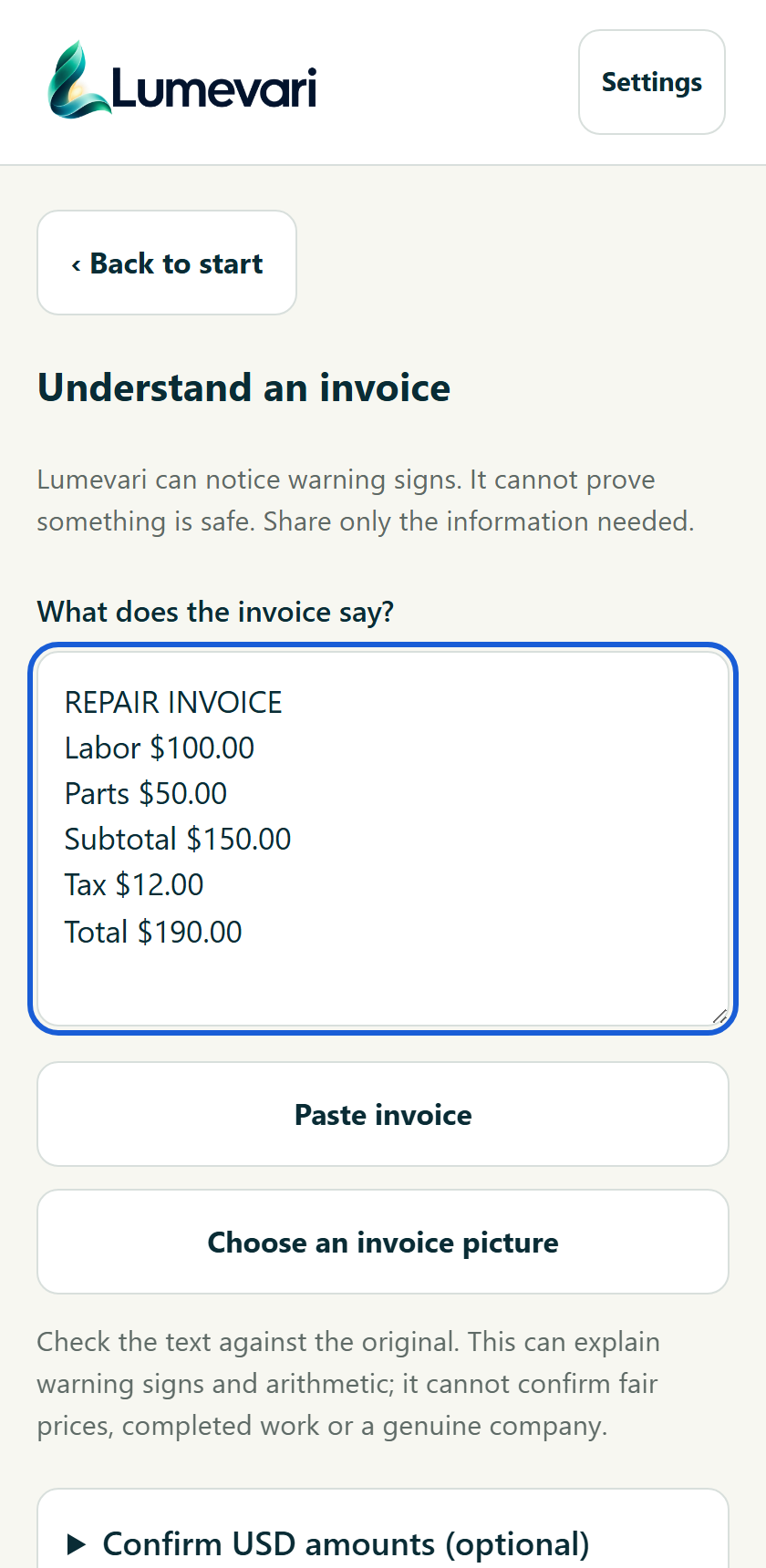
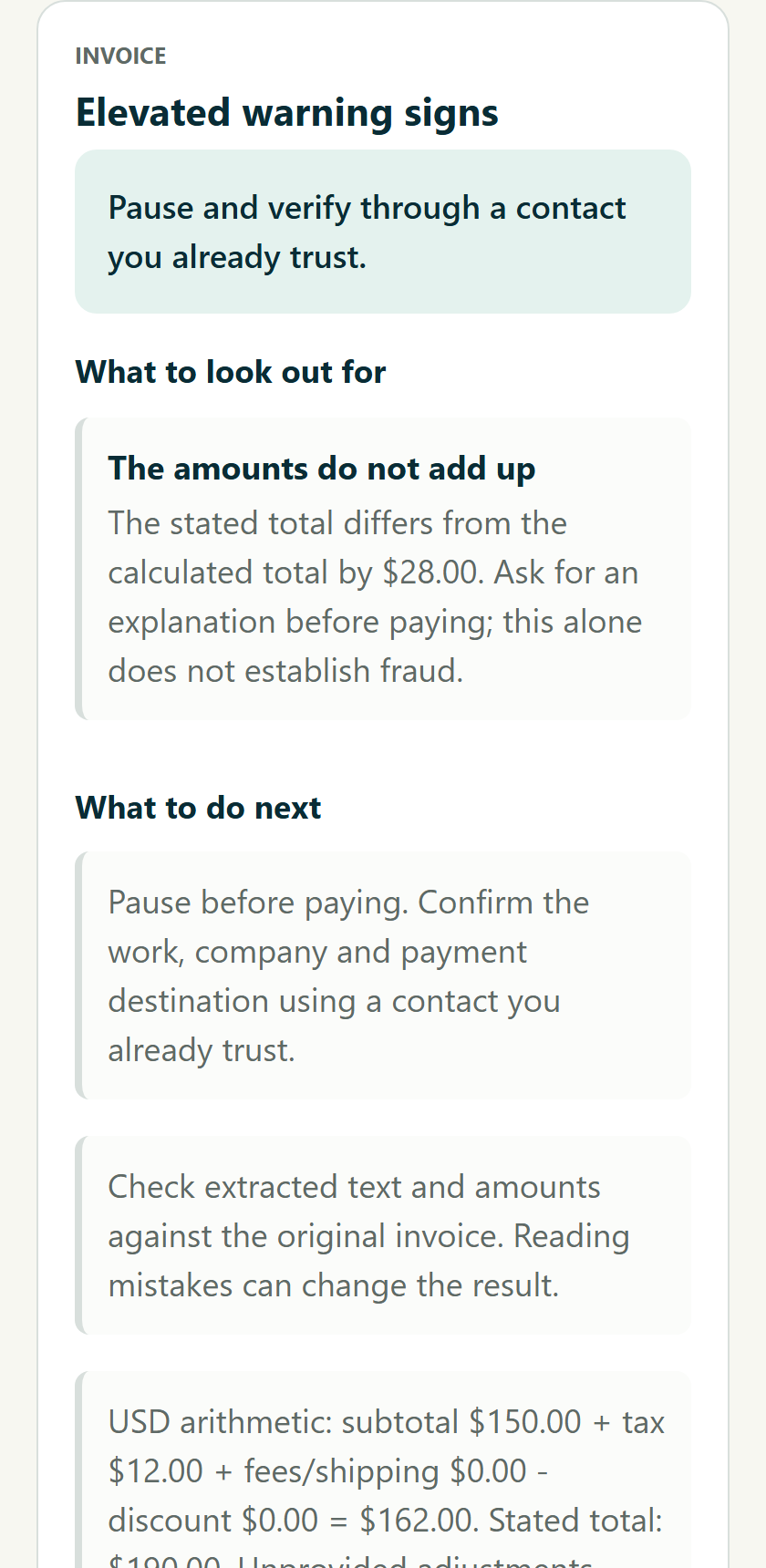
Checks arithmetic and potentially repeated charges, not fair prices, tax rules or completed work.
Help us improve: Does the explanation help you ask a clear question about the bill? Tell us what you think.
F5Compare a business.Spot differences between what someone claims and a source you already trust.
- Find a trusted source
Use an existing statement or known contact, separate from the request.
- Compare the details
Enter the two numbers. Names and websites are optional.
- Resolve mismatches
Read what differs. Call back through the independently trusted number.
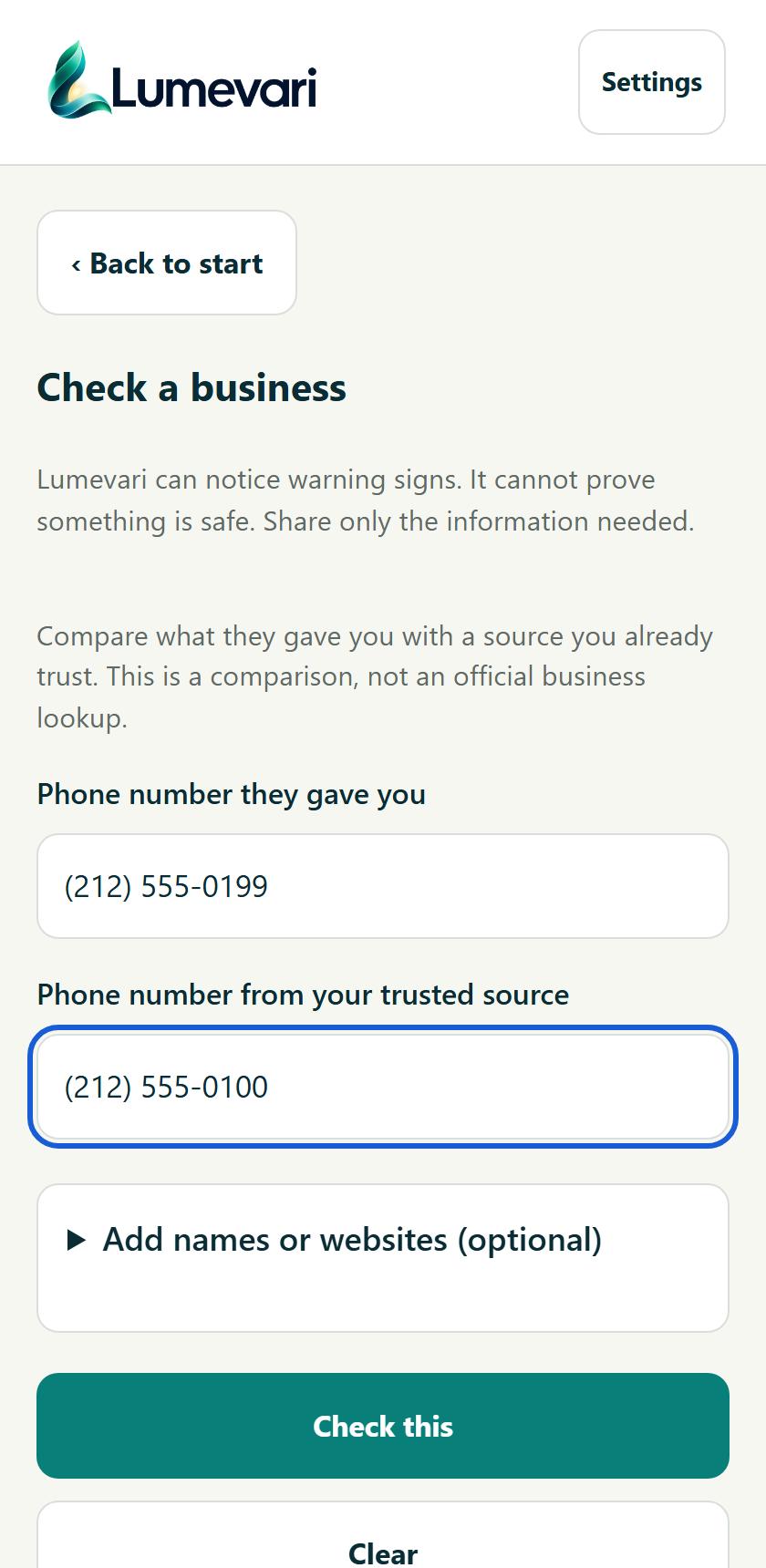
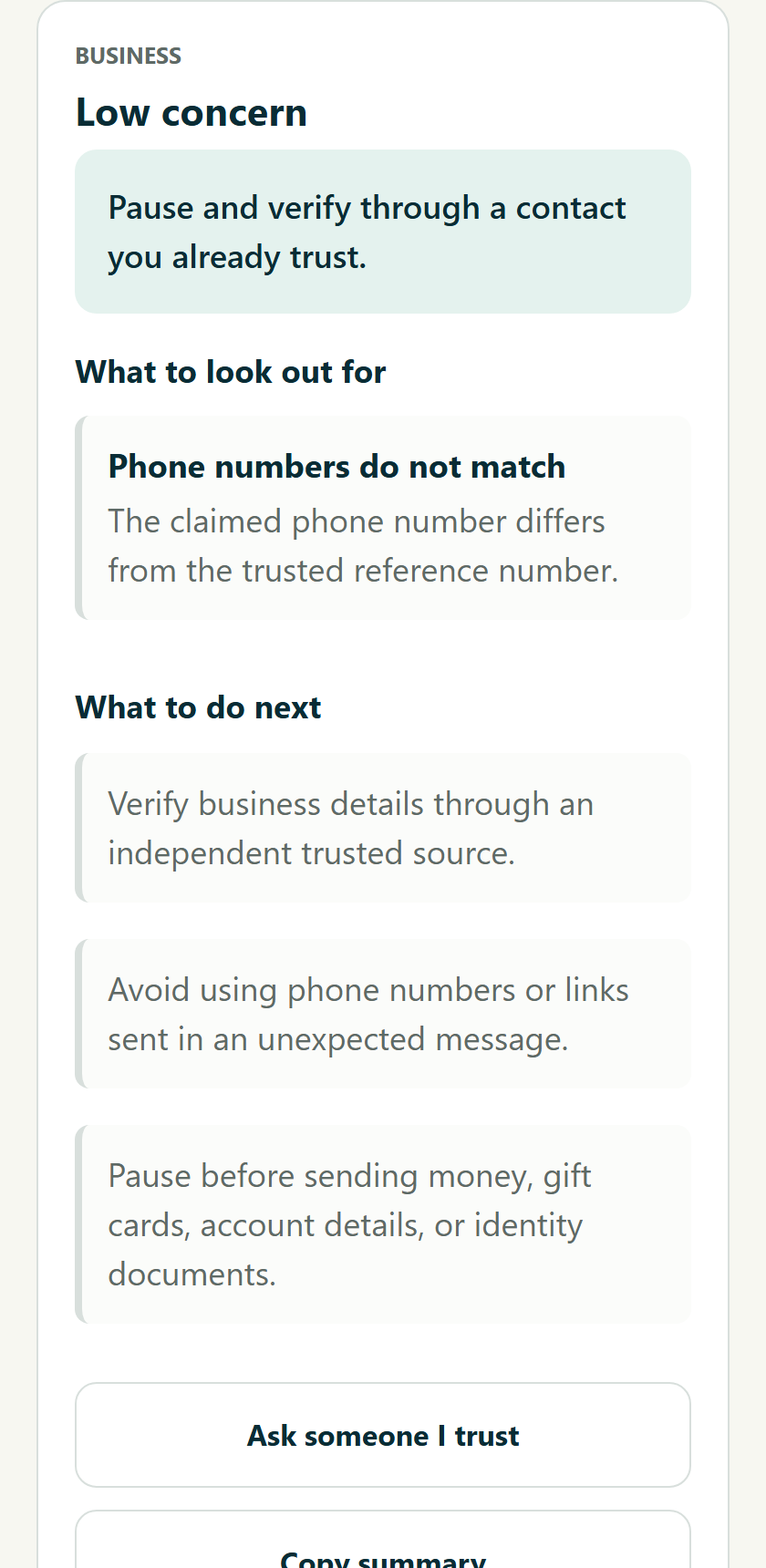
A comparison, not a registration or license lookup. Matching details do not certify a company.
Help us improve: Is it clear where the trusted reference number should come from? Tell us what you think.
F6Message warnings.Get a prompt to pause when a selected app shows a concerning message preview.
- Choose the apps
In Settings, select supported installed apps and read the disclosure.
- Allow Android access
Enable notification access and warning notifications if you want this help.
- Open an explanation
Tap a Lumevari warning. Verify independently before following the request.
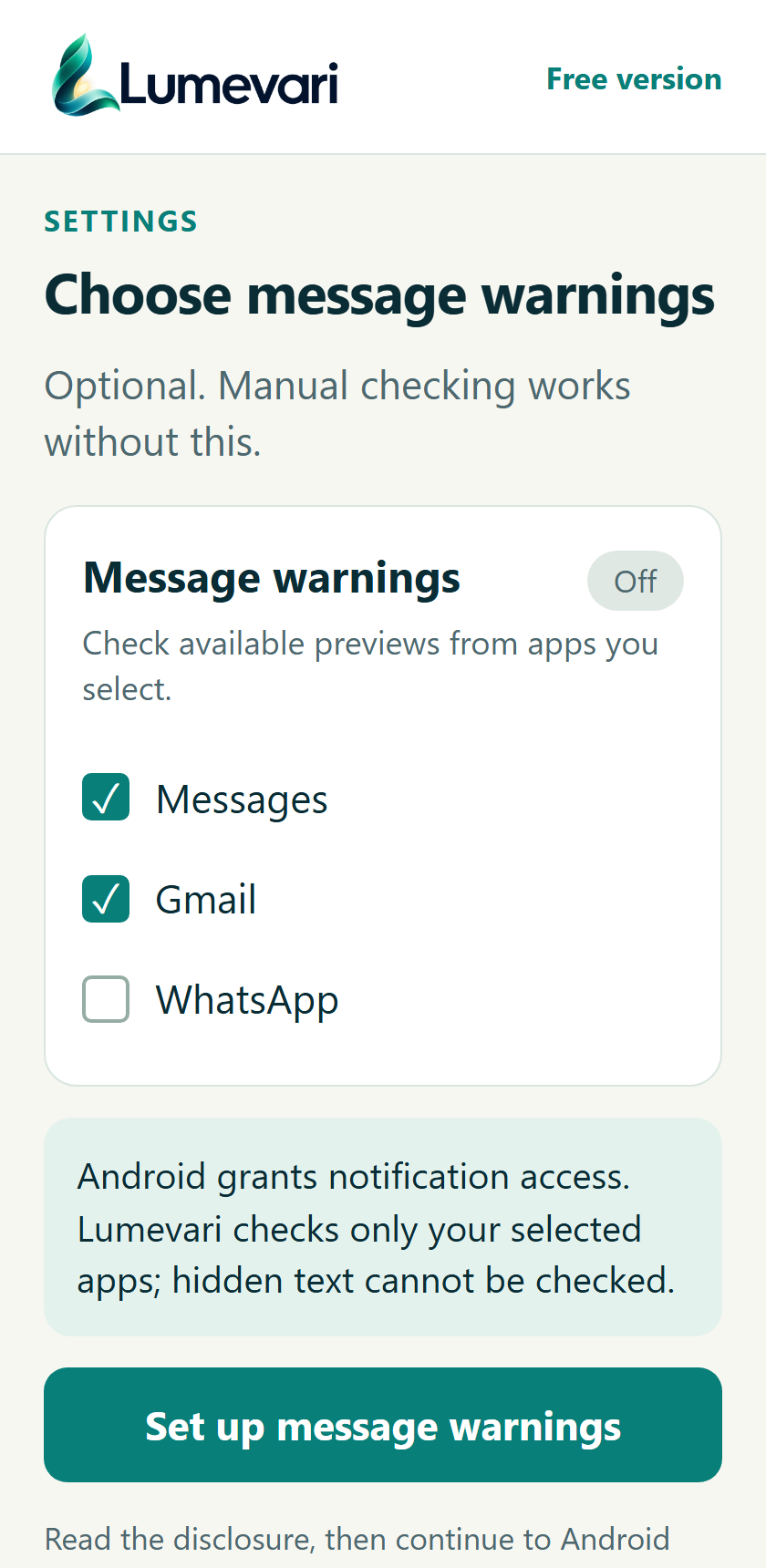
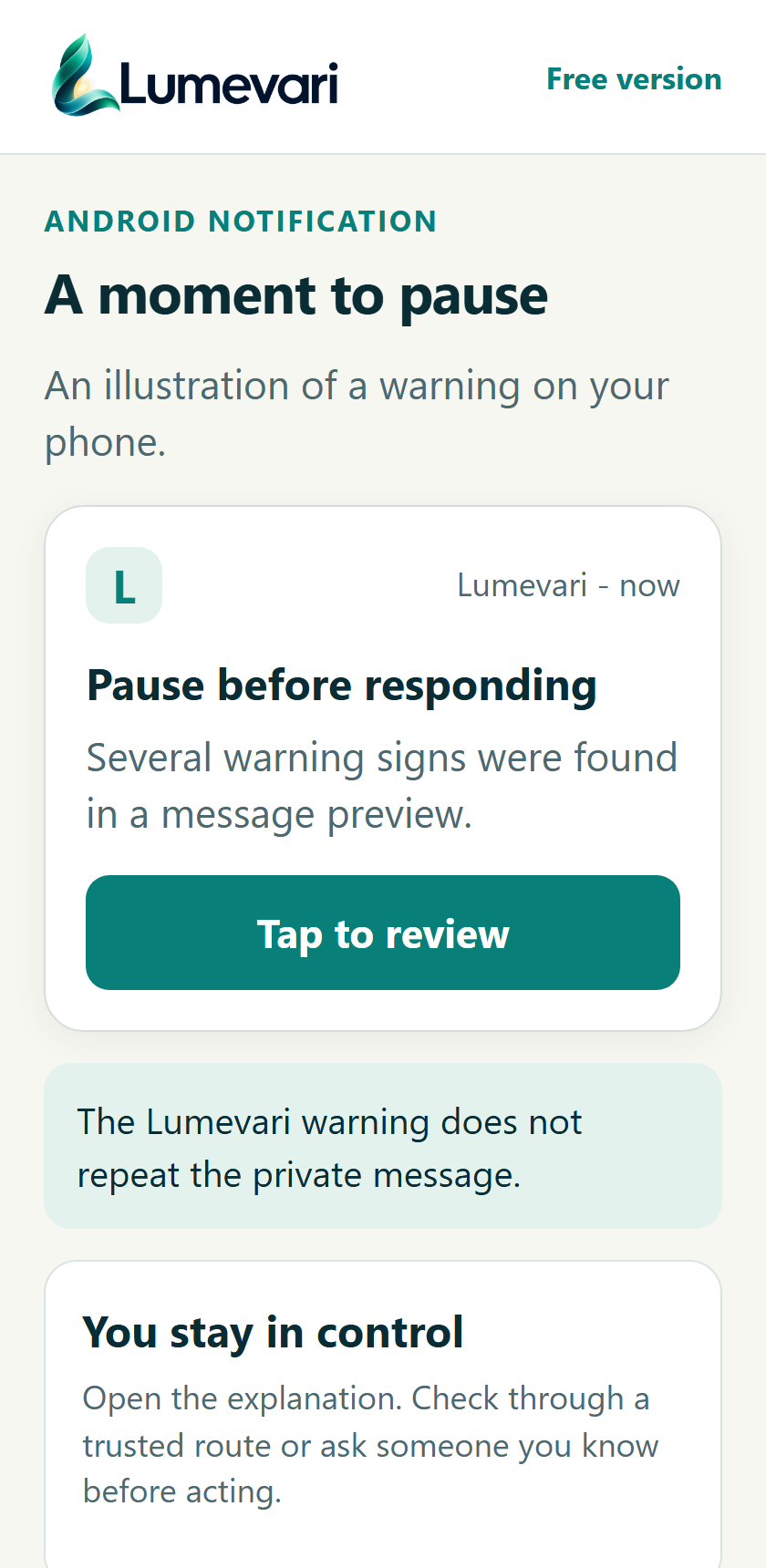
Only available previews can be checked. Hidden text or a missing warning does not establish safety.
Help us improve: Does this setup explain both the permission and its limits? Tell us what you think.
F7Incoming-call warnings.Add a caution when eligible incoming-number checks find a reason to pause.
- Choose call warnings
Read the limits, then select Lumevari in Android caller-ID / spam settings.
- Notice a warning
Checks use failed carrier verification, where available, or numbers you marked.
- Take time to verify
Open the explanation. If unsure, let voicemail answer or end the call yourself.
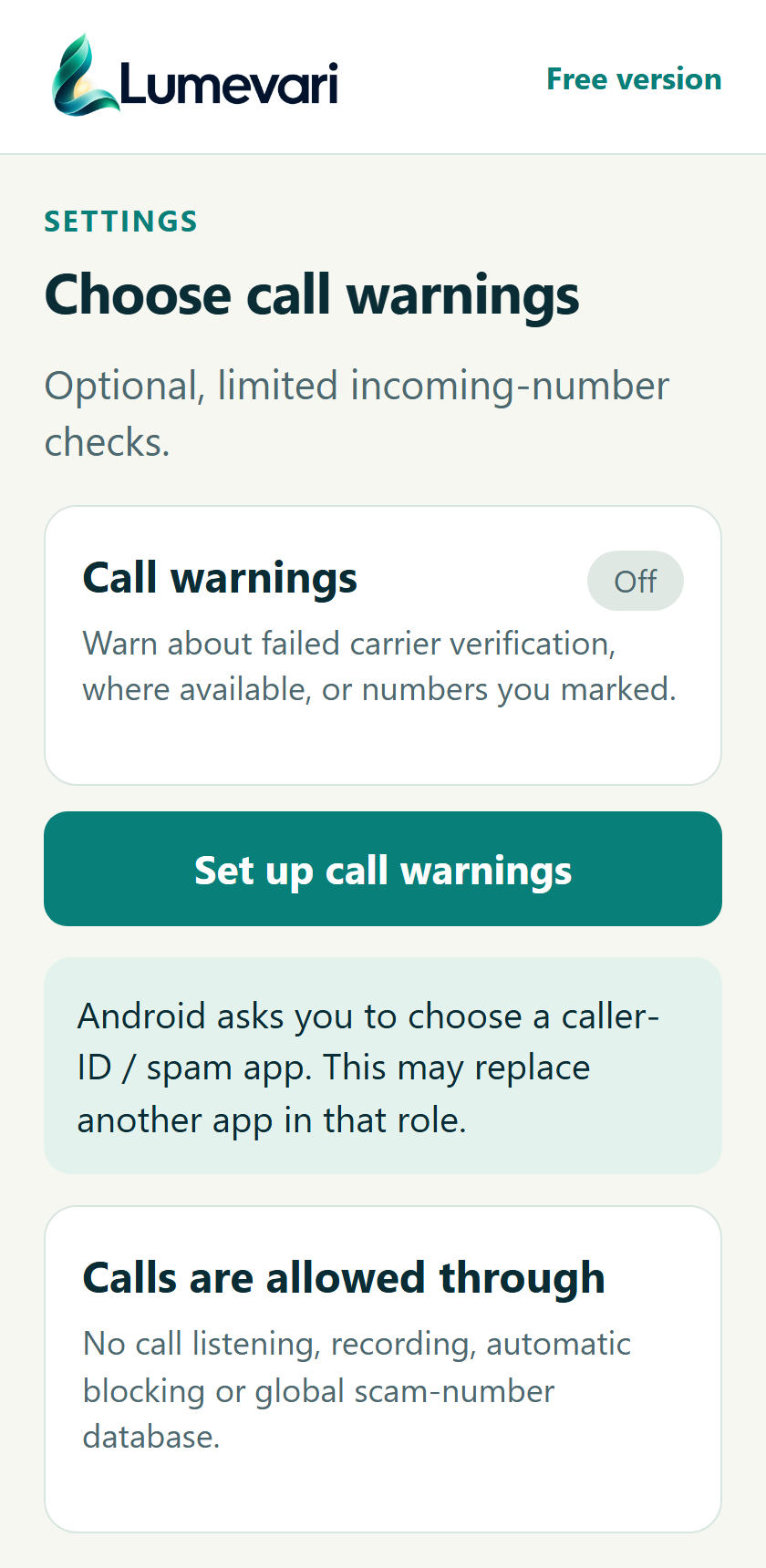
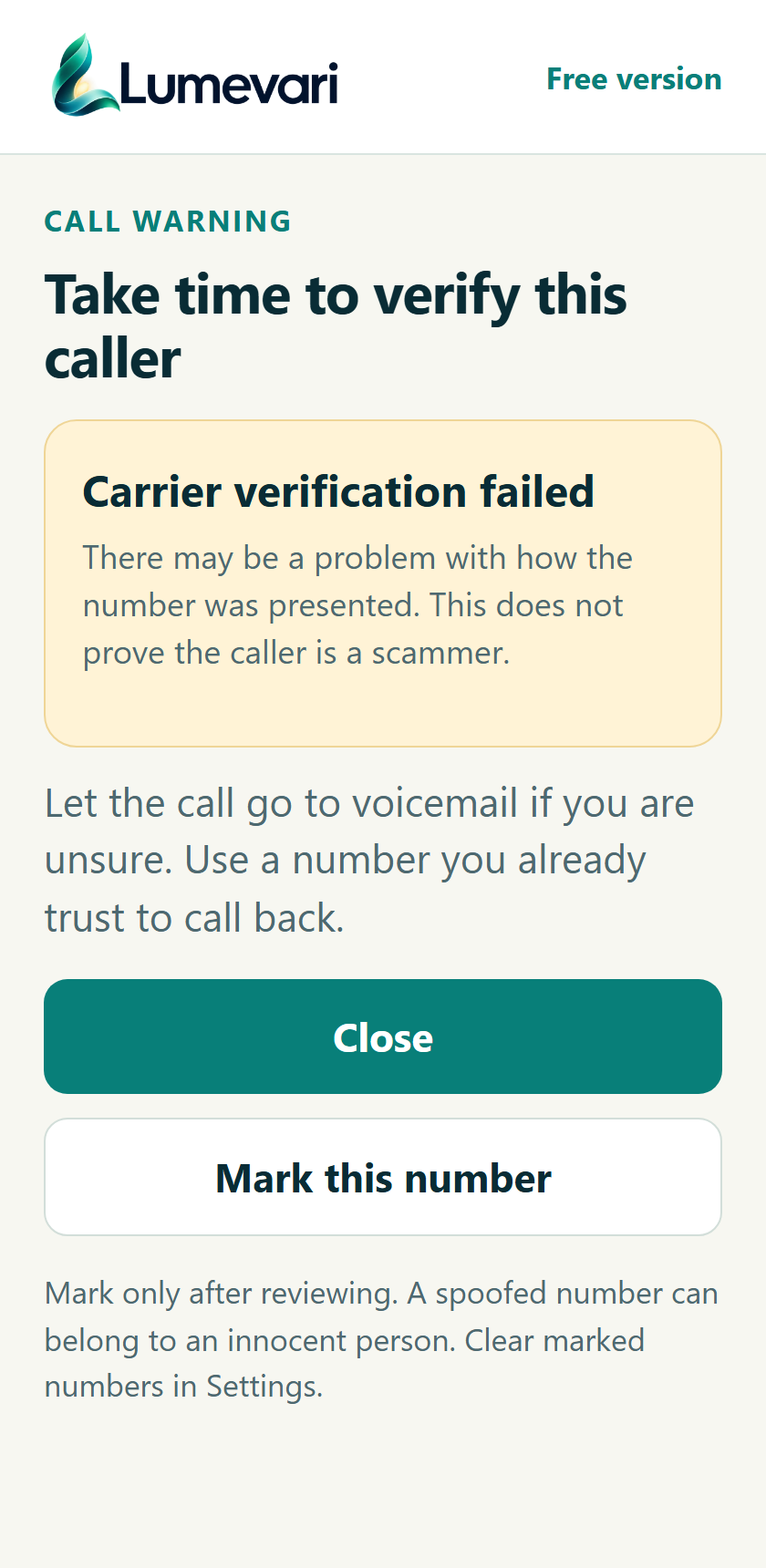
Calls are allowed through. No listening, recording, automatic blocking or global scam-number list.
Help us improve: Would this help you pause without assuming every unfamiliar caller is a scammer? Tell us what you think.
F8Ask someone I trust.Make asking a family member or friend an obvious next step.
- Save a known person
Enter a name and a number you knew before the suspicious request.
- Choose who can help
Save up to three people locally. Change or remove them whenever you want.
- Open the phone dialer
Choose Call. Your phone app asks you to place the call; no call starts silently.
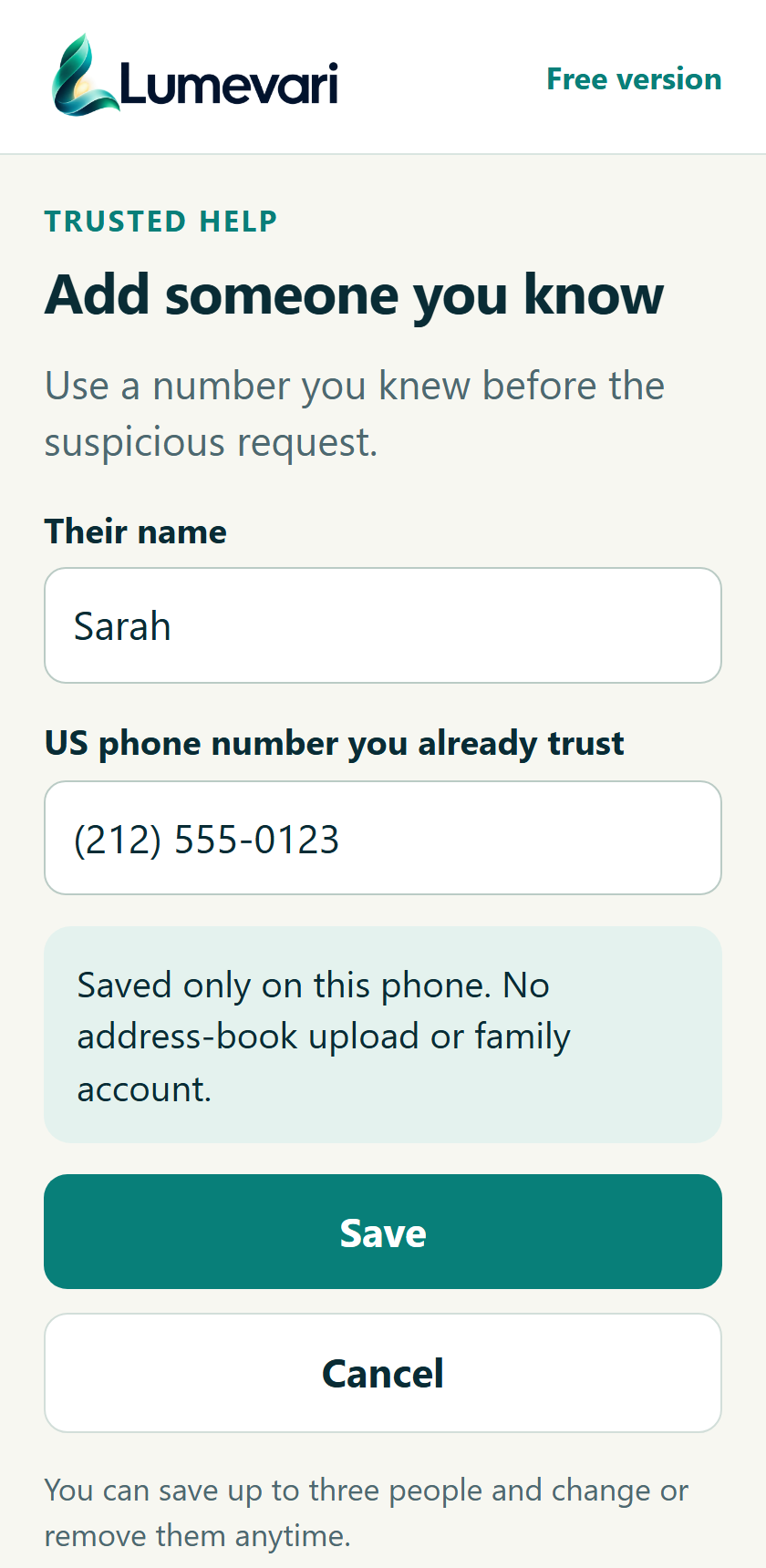
Hang up a suspicious call first. This release does not add a relative to an existing call or let them listen in.
Help us improve: Would you find this help quickly when feeling pressured? Tell us what you think.
Share only when you choose.
- Preview the request
Choose Ask for help in another app. Nothing is sent automatically.
- Choose what to include
A general request is the default. The warning summary is optional.
- Choose app and person
Pick the service and recipient, review the message, then send in that app.
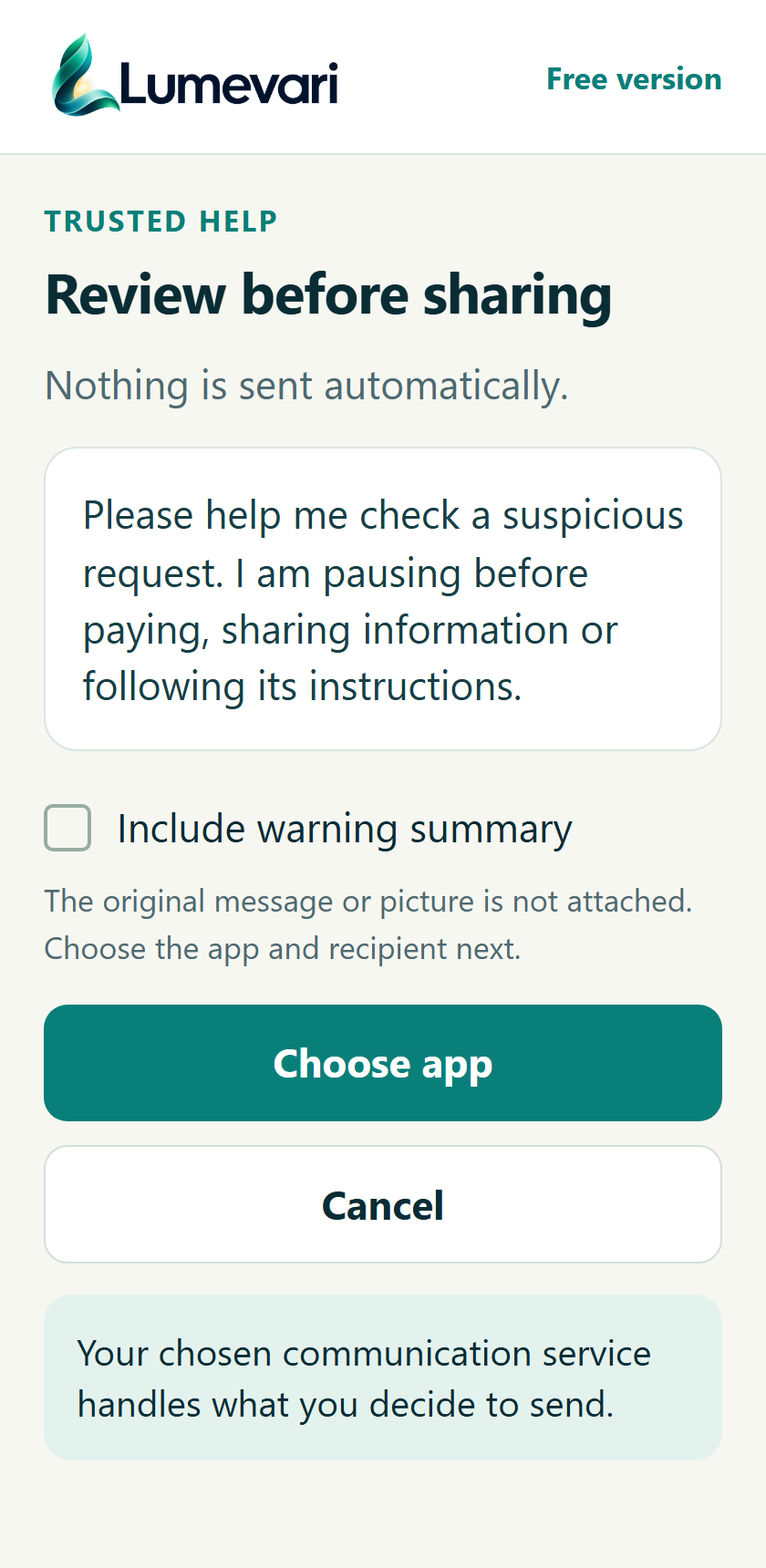
Sharing leaves the phone through the chosen service. The original message or picture is not attached.
Help us improve: Is it clear that you choose both the content and the recipient? Tell us what you think.
F9Make it easy to read.Large controls and plain explanations reduce the number of things to figure out.
- Choose one task
Start with a message, link, business comparison or invoice.
- Use phone assistance
Adjust Android text size or use TalkBack. Scroll for the remaining choices.
- Move at your own pace
Manual checking works even if you decline optional background permissions.
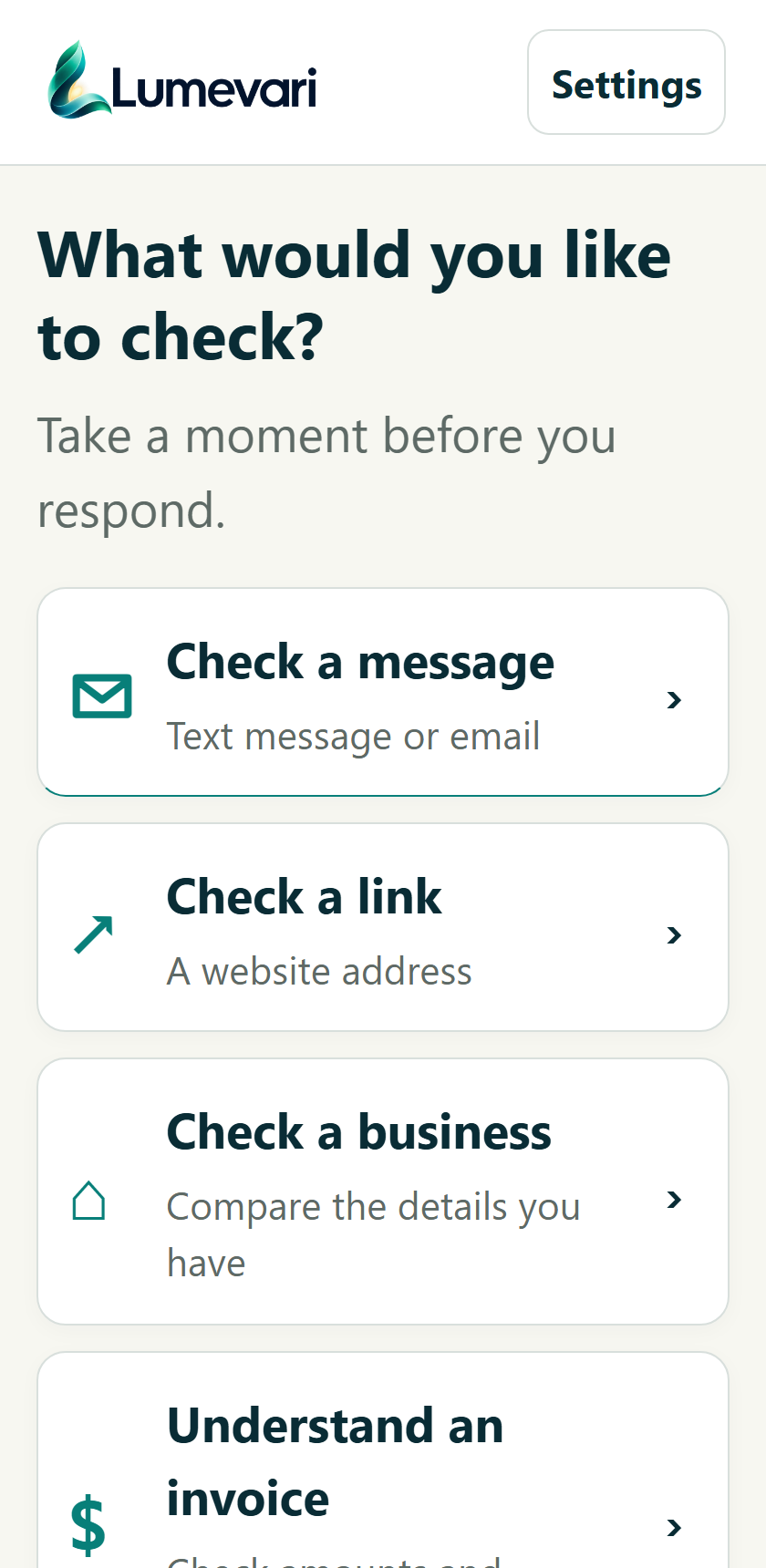
Physical-device, TalkBack and older-adult usability testing remain pending. No custom voice assistant in this release.
Help us improve: Are the words, controls and next action comfortable and easy to find? Tell us what you think.
F10Keep control of your privacy.Use helpful checks without creating a personal-content database.
- Check on the phone
No account, ads, analytics or personal-content uploads to Lumevari.
- Choose what to retain
Recent-review metadata is optional. Submitted text is not included.
- Clear what you control
Clear the current review and saved metadata separately; manage contacts in Trusted help.
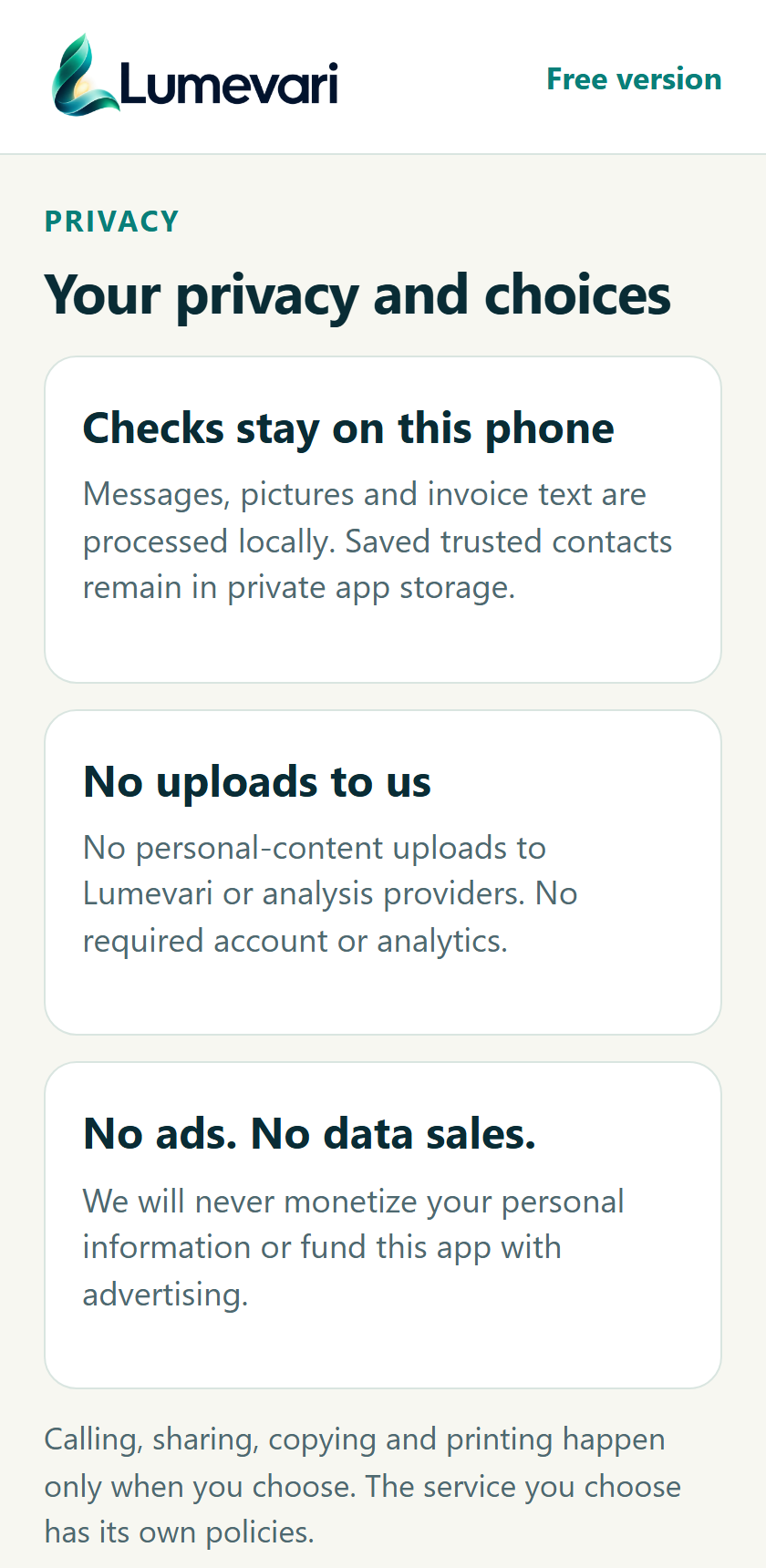
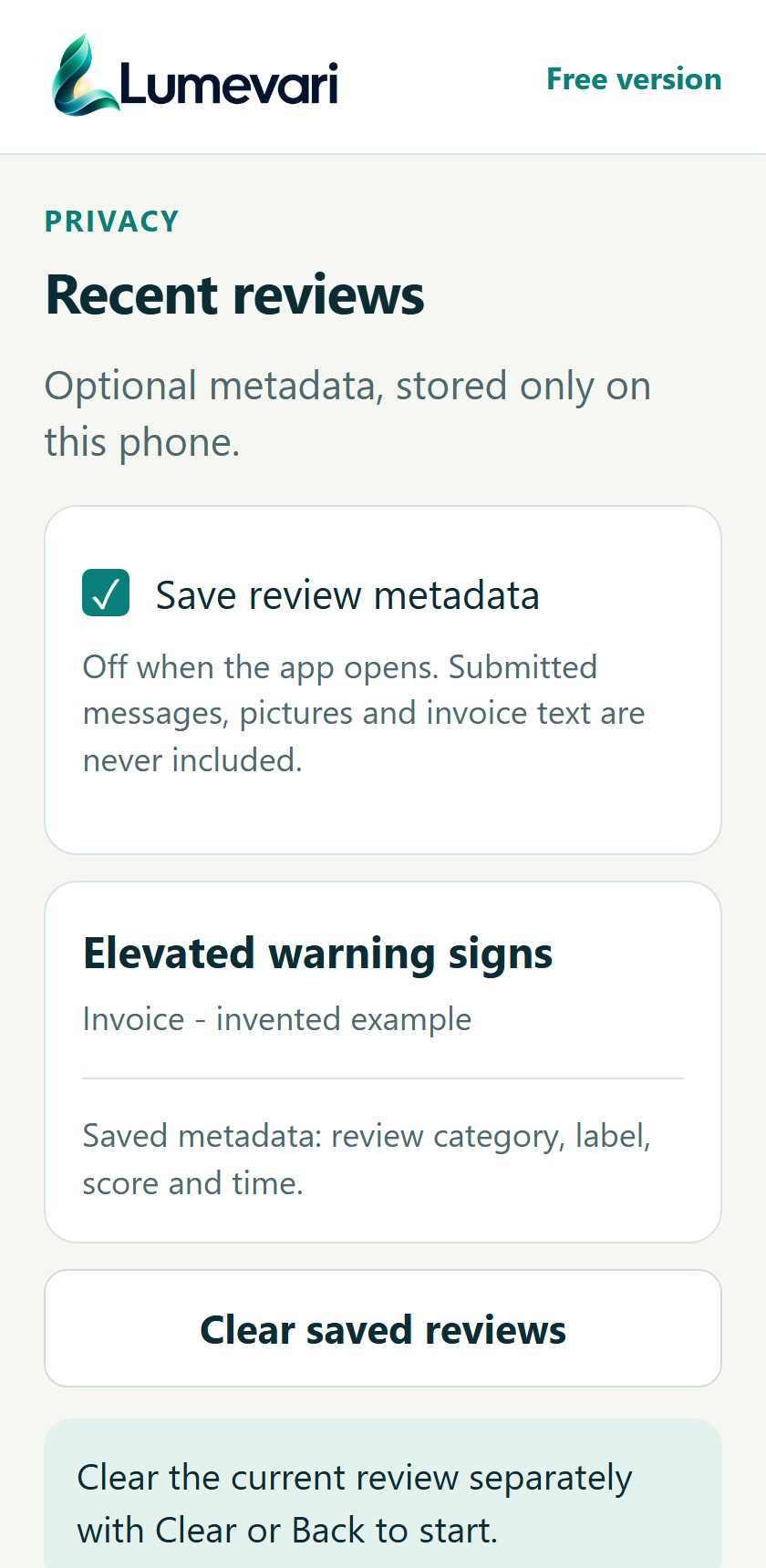
Clearing Lumevari cannot erase an external recipient's copy, a printout or the system clipboard.
Help us improve: Can you tell what stays local and what leaves only when you choose? Tell us what you think.
Privacy and independence
Your information is never our revenue model.
No ads. Ever. No selling, renting, trading or monetizing personal information.
Checks are designed to run on the phone. Text, pictures and saved trusted-contact details are handled locally, with no personal-data uploads to Lumevari or analysis providers.
You decide when to make a call, share a help request, copy text or print. Those deliberate actions use the carrier, app or service you choose and its own privacy practices.
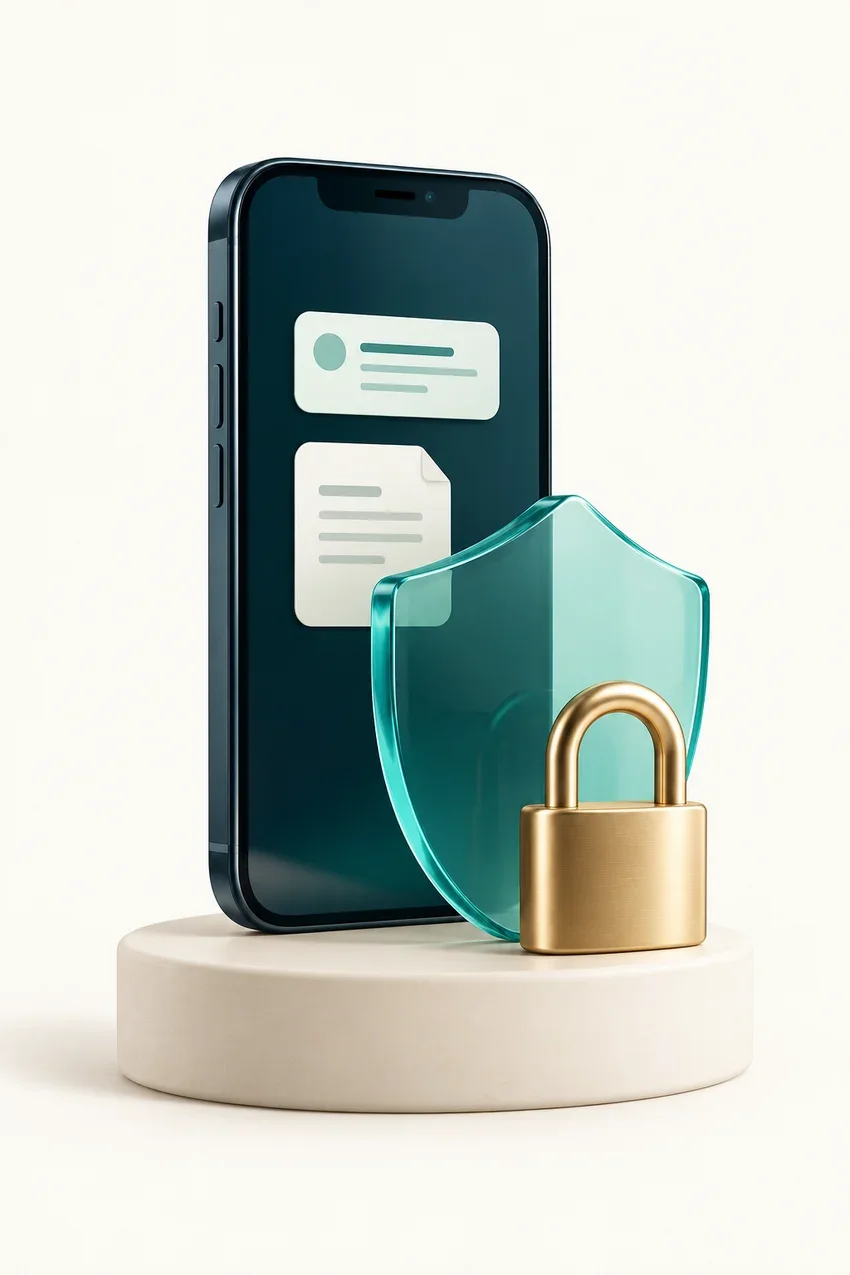
An optional copy to share
Keep the guide. Share the conversation.
Everything you need to explore the features is here in this post. The 18-page PDF is a companion you can save, print or share with someone who would like to help. No account or email signup is needed.
Download the feature guide (PDF)- Can I find what I want to check?
- Do I understand the warning and next step?
- Can I find someone I trust?
- Is it clear what stays on my phone?
Your feedback can make a difference
What should we make clearer?
You can give feedback right here after reading the post. Use the site form below to tell us what felt useful or confusing. Feedback from older adults, family members, caregivers and people with accessibility experience is especially welcome.
No name or email is requested. Please use invented examples and leave out private messages, phone numbers, financial information and other personal details. Submitting website feedback sends it through Squarespace and the site’s configured delivery services to 1:1 AgileTech Solutions. Website services may also process technical data. This is separate from the app’s local checks.